Export Image

After editing and analyzing the image, you can export images, to make it a backup file in your PC or share it with third parties.

Different types of files support export in various formats.

Table 1 Image Export

Image Type

Exportable Formats

Radiometric Image

  • Unanalyzable Thermal Image (*_IR.jpeg)

  • Full View Visual Image (*_DR.jpeg)

  • Aligned Visual Image (*_DAR.jpeg)

Acoustic Image

  • Unanalyzable Acoustic Image (*_A.jpeg)

  • Full View Visual Image (*_DR.jpeg)

Acoustic-Thermal Image

  • Analyzable Acoustic Image (*_A_analyzable.jpeg)

  • Radiometric Image (*_IR_analyzable.jpeg)

  • Unanalyzable Acoustic Image (*_A.jpeg)

  • Unanalyzable Thermal Image (*_IR.jpeg)

  • Full View Visual Image (*_DR.jpeg)

Note

Acoustic-Thermal Image supports splitting into independent analyzable acoustic image and radiometric image through the export function.

  1. In Analysis tab, select the image to be exported in the task list.
  2. Click > Export Image in the Task List to open the setting window.
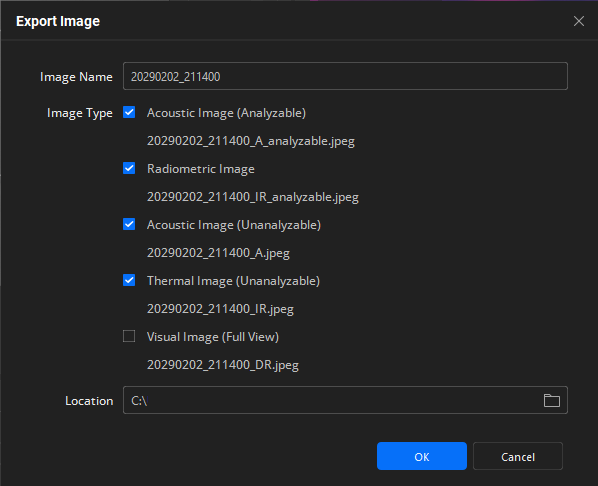
    Figure 1 Export Image (Acoustic-Thermal Image)
  3. Set relevant parameters.
    Image Type

    You can export both thermal images and visual images, or you can select either one kind of them to export.

    Note

    The image types that can be exported are subject to device.

    Image Name

    You can customize the image name. Different exported images will have their filenames automatically generated.

    Saving Path

    The image is saved in the default directory, or you can select another saving path.

  4. Click OK to export the image.
    Note
    • Select Batch on top of the task list, select Batch Save > Batch Export to export all radiometric and acoustic images.

    • When exporting an image group, each image in the group will be exported according to the settings.

Was this page helpful?