Set Display Mode
For images taken by a camera that has both thermal and visual channel, they are allowed to display in thermal, fusion, PIP, blending, or visual mode.
In the toolbar of the Analysis tab , clickto select a display mode.
 to select a display mode.
Radiometric videos, trend videos and live streaming only have thermal mode available
|
Mode |
Sample |
Description |
|---|---|---|
| Thermal |
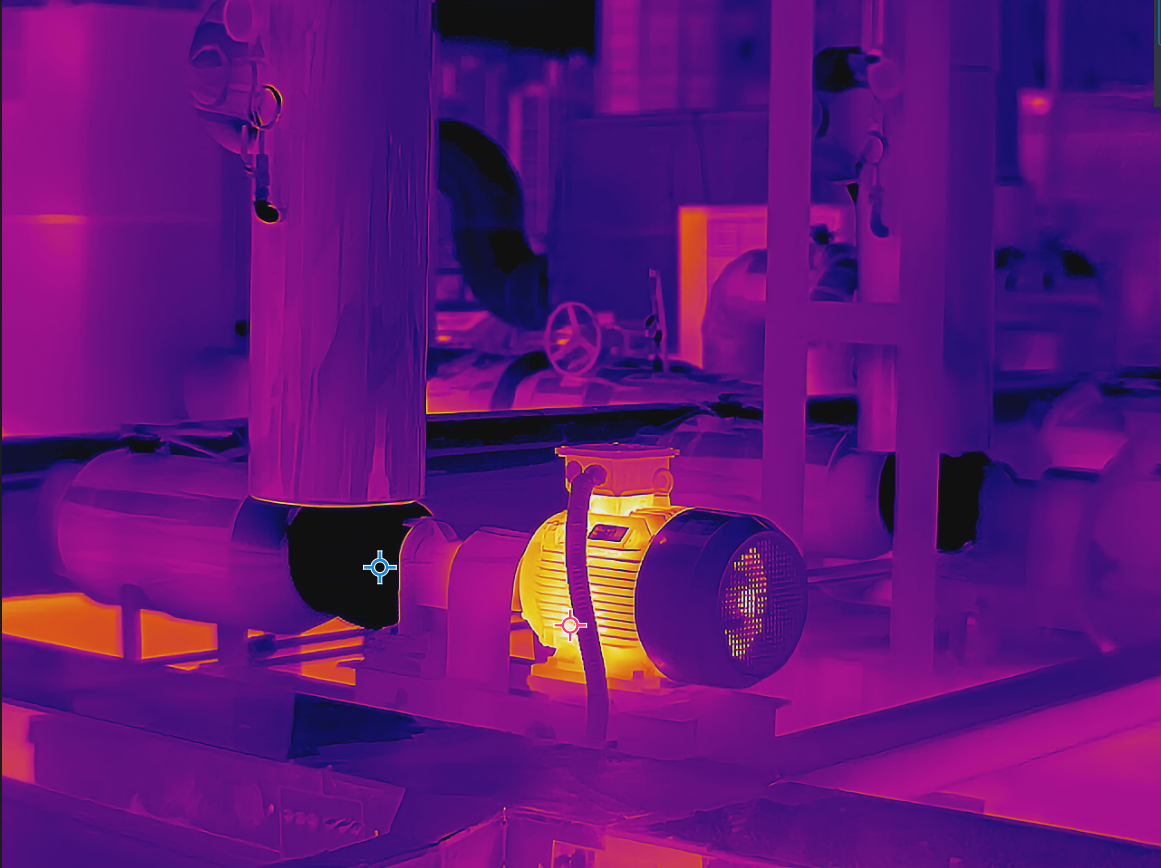
Thermal image only. |
|
| Fusion |
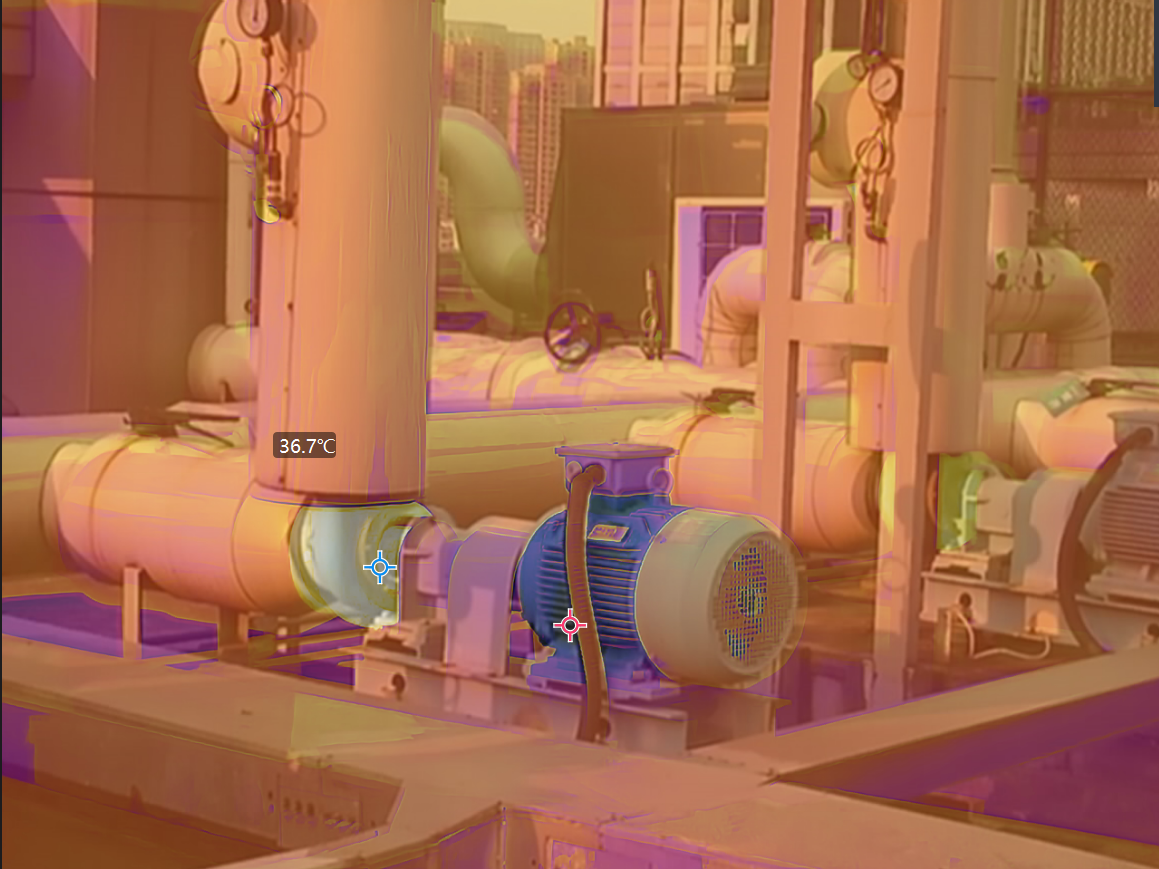
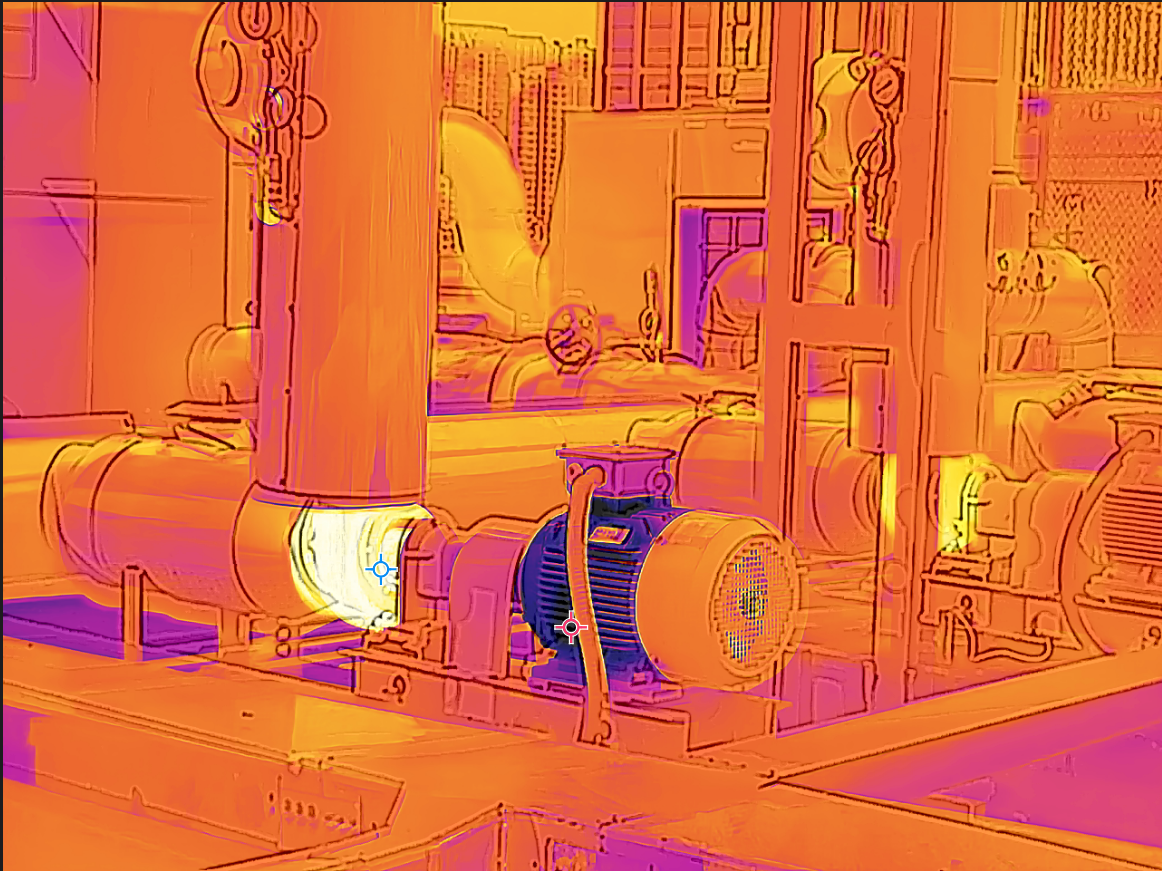
In the fusion mode, the thermal image and the optical image are combined to make the image boundary clear, so that it can not only continuously detect the temperature of the environment of the object, but also distinguish the shape of the object in the environment. Note
If necessary, click Adjust Fusion Alignment to align the visual image with the radiometric image.
|
|
| Blending |
In blending mode, you can adjust the visible light ratio. If the image in Thermal mode is not clear, you can increase the ratio of visible light so as to get more details for making accurate decisions. Note
Select Blendingand drag the slider left of right to adjust the thermal/visual level. |
|
| PIP |
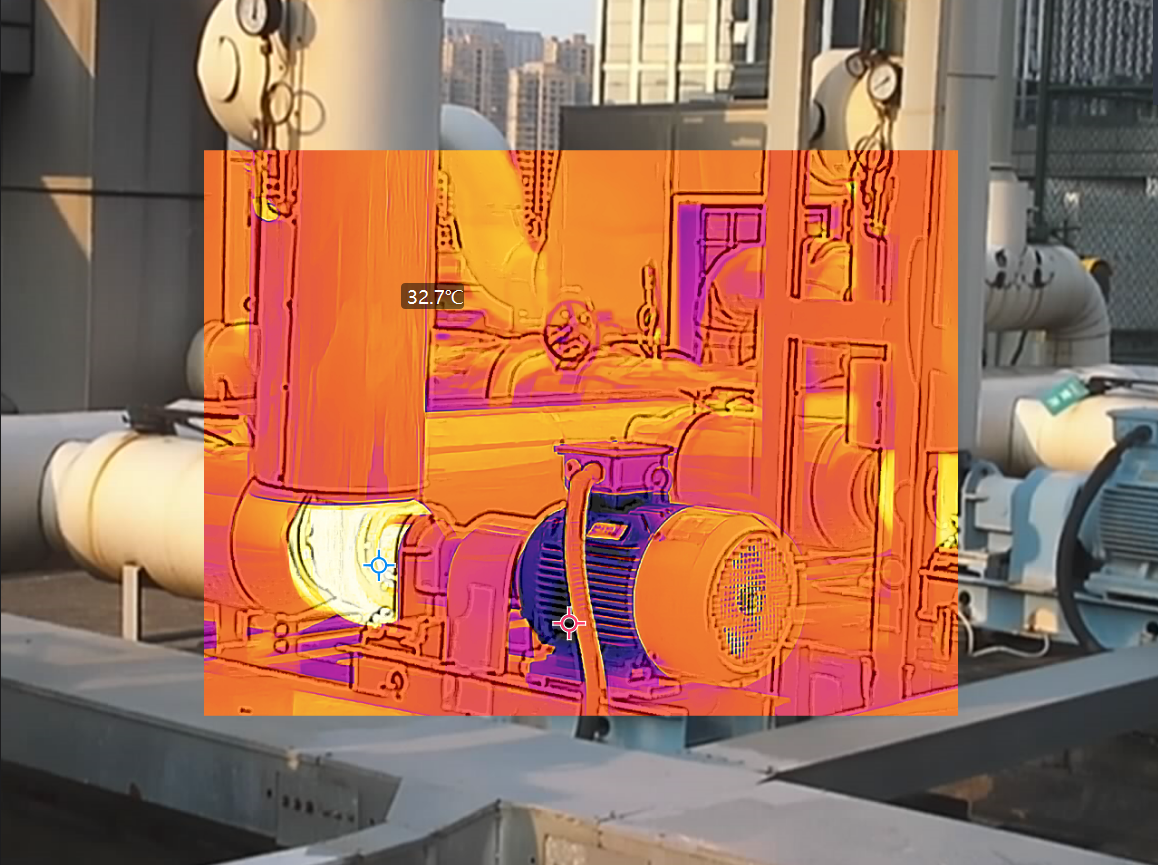
In PIP (picture in picture) mode, a visual image is in background, and the thermal image is in the center of the image. Select PIP in the drop-down list. If needed, and click Adjust Thermal View to resize and move the radiometric image according to the instructions on the interface. |
|
| Visual |
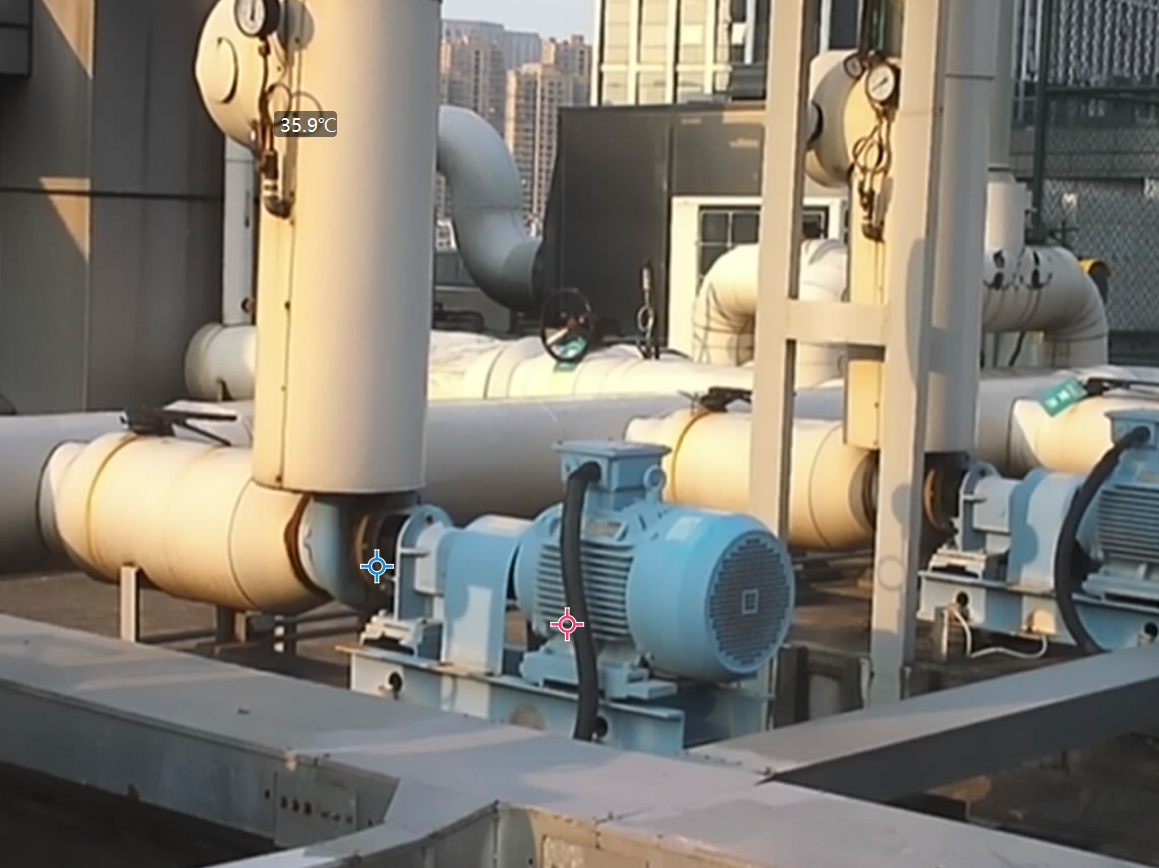
Visual image only. |
 /
 to zoom
in/out the visual image. You can also press the
PLUS/MINUS key to zoom in/out the image.
 /
 /
 /
 to
adjust the position of the visual image. You can also
press the direction keys on the keyboard to adjust the
position.