Image Editing Tools
In Analysis tab, image editing is primarily completed through the palette bar area on the right side of the thermal image. Using the top toolbar, you can also set the image mode, adjust advanced parameters like image sharpness and contrast, and modify image size and orientation. Through image editing, you can view the image with more details and clearer temperature distribution.
Tools for image, video, and live streams editing are different. Refer to the actual software interfaces for details.

-
Display mode. When the thermal image has a visual image attached, you can choose to view the image in a pure thermal, visual or mixed ways. See Set Display Mode for more instructions.
-
Advanced image editing. It provides the parameters such as brightness, contrast and sharpness. See Advanced Image Editing for more instructions.
-
Rotate the image.
-
Resize the image. See Rotate and Resize Image for more instructions.
-
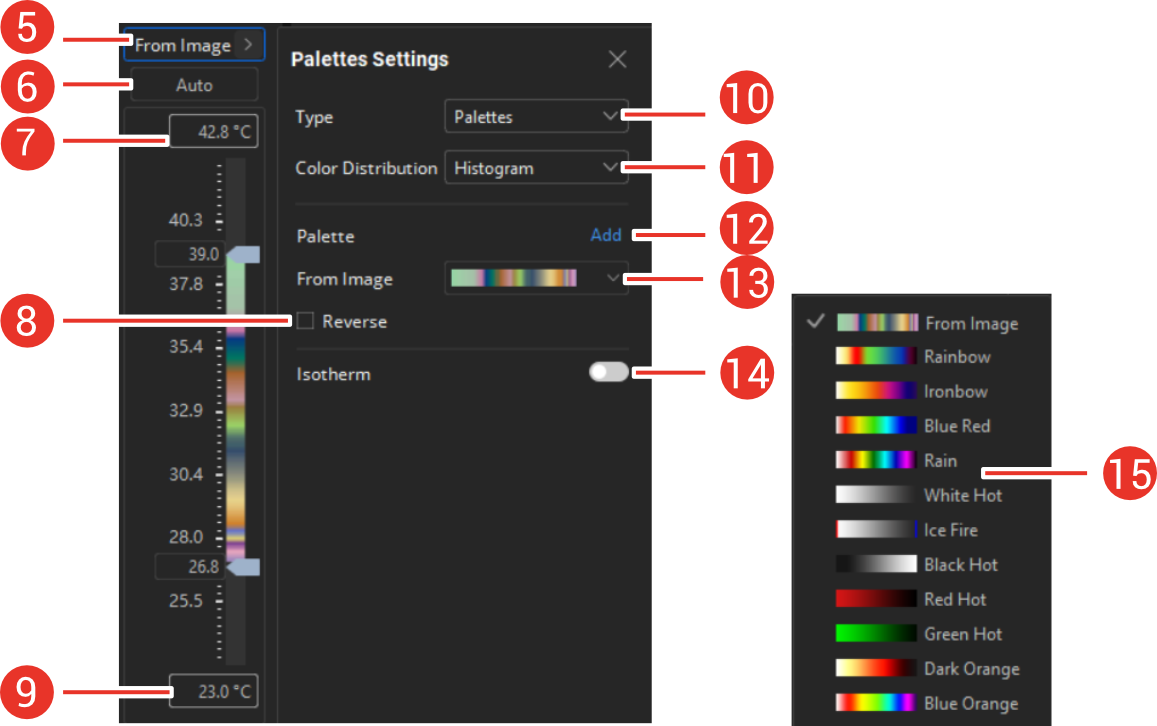
Palette settings. It shows the palette type of the current image/video/live stream. Click on it to open palette settings panel.
-
Level and span mode. Auto and manual are selectable. See Level and Span for more instructions.
-
Top of the temperature scale. When manual level and span mode is in use, the top scale value is user-adjustable.
-
Reverse palettes. Check the box to inverse the temperature-color relation of the selected palette type. See Palettes and Reversed Palettes for more instructions.
-
Bottom of the temperature scale. When manual level and span mode is in use, the bottom scale value is user-adjustable.
-
Palette types. There are 3 main types, custom and built-in palettes, condensation, and insulation. See Palettes and Reversed Palettes, Insulation, and Condensation Detection for more instructions.
-
Color distribution. It stands for the relations of colors and temperatures. Linear and histogram are selectable. See Color Distribution for more information.
-
Import other palettes. Acceptable file format is *gpl. See Palettes and Reversed Palettes for more instructions.
-
Non-built-in palettes. If the thermal image in analysis has a non-built-in palette type, the palette can be read and displayed normally. Its name will be From Image displayed on top of the list.
-
Isotherm settings. See Set Isotherm for more instructions.
-
Built-in palette types.
For the images, videos, and live streams with low thermal resolutions, super resolution function is available to improve image quality and offers more details. See Super Resolution for more instructions.