Generating Report of Images
You can generate a report file of thermal and acoustic images, including content such as image information, measurement parameters and results, and save it to the local PC for further comparison and analysis.
Procedure of generating a report is as follows.
-
Select images to be included in the report, and adjust the image order and grouping in the task list. See Add and Organize Images for details.
Note-
When using a report template to generate a report directly, the order of images or image groups on the task list generally corresponds to the order of images in the report. It is recommended to adjust the order in advance.
-
If you need to compare images in one report page, it is recommended to create image groups in Task List, then select a template (page template or report template) with page(s) that include the exact number of thermal/acoustic images as that in the groups. See Images Groups for instructions.
For example, if you want to quick generate a page of 2 thermal images, create a 2-image group, and use the Thermal x2 Comparison system template for report generating.
-
Videos are not allowed to generate a report.
-
-
Select a template for the images and groups.
-
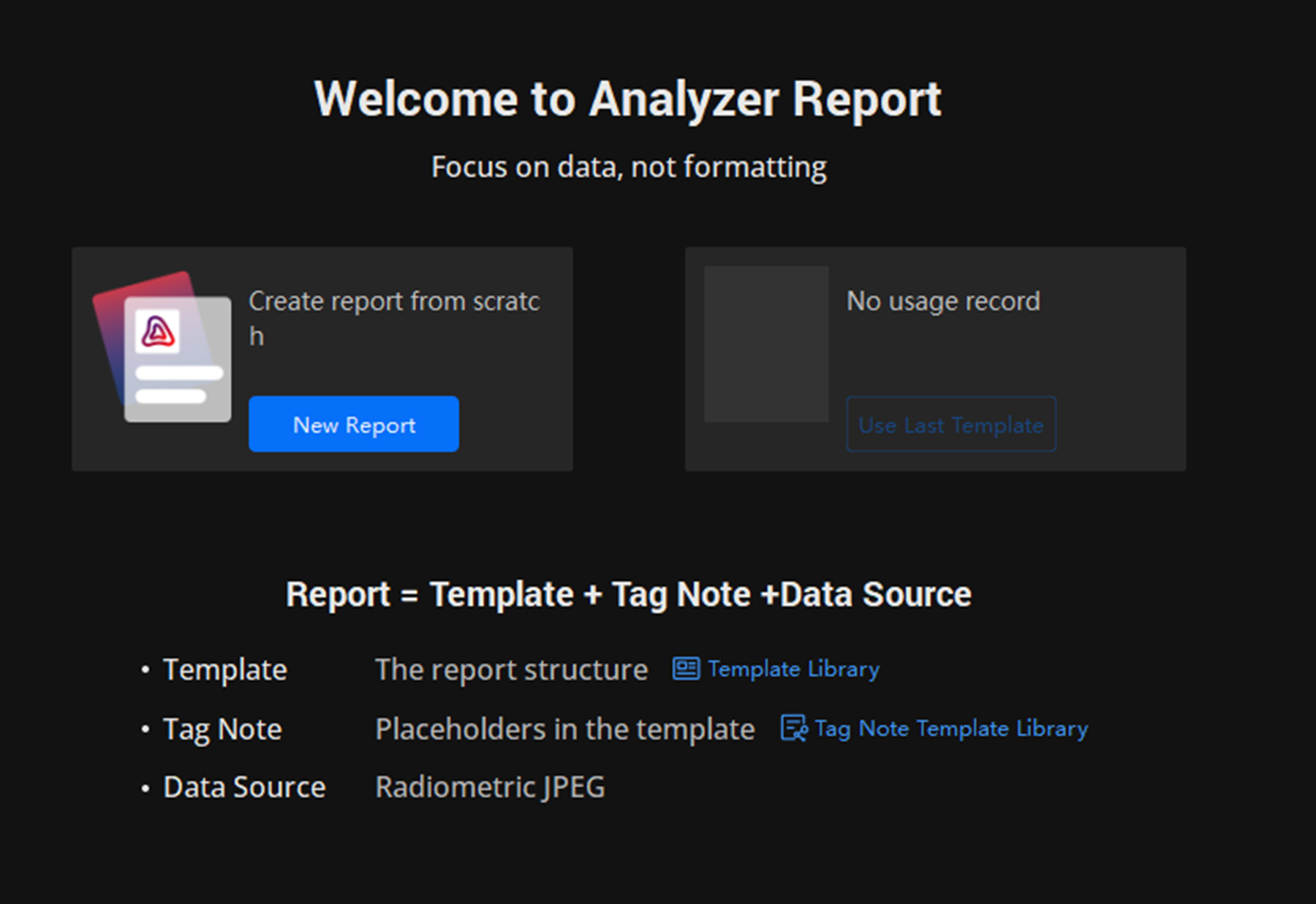
Select template from the report home page .
-
Select New Report to start from scratch.
-
Click Template Library to open page and report templates library. Select one template to start.
For more functions on templates, see Report Template for details.
-
Click Use Last Template to start with last-time used template.
Figure 1 Report Home Page -
-
In report editing page, click to select a template to create a new report. Or click to go back to report home page and create a report by other ways.
NoteWhen selecting an ART format template, you can edit the report content directly within the client software. When selecting other format templates, the report is directly exported as a target format file, which can be edited using software such as Microsoft Word.
-
-
Preview and edit your report in this client software. There are multiple tools for editing.
-
Style tools: adding and editing cover page, overview page, header and footer, document property, and setting content alignment.
-
Content organization tools: organizing all contents with titles of different headings and tables. Texts, images, and predefined content objects are all allowed to insert in table cells.
-
Predefined content objects: there are multiple predefined content objects for quick image adding and data linking. Available content objects categories are Picture, Thermal Analysis, Acoustic Analysis, Notes, and Image Property. Each category offers different options for quick content adding.
NoteFor predefined content objects organized in a table (except certain predefined content types), adding rows and columns are allowed. You can input text or link document property or other image-related items.
- More functions on editing a report, see Edit Report.
-
-
Save and export your report. PDF and OTD format are supported. See Export File for instructions.
 .
 to select a template to
create a new report. Or click