Report Template
You can select from existing system templates, import or create more templates for reports.
All templates including system and customized ones are stored in Template Library.
System Page Templates
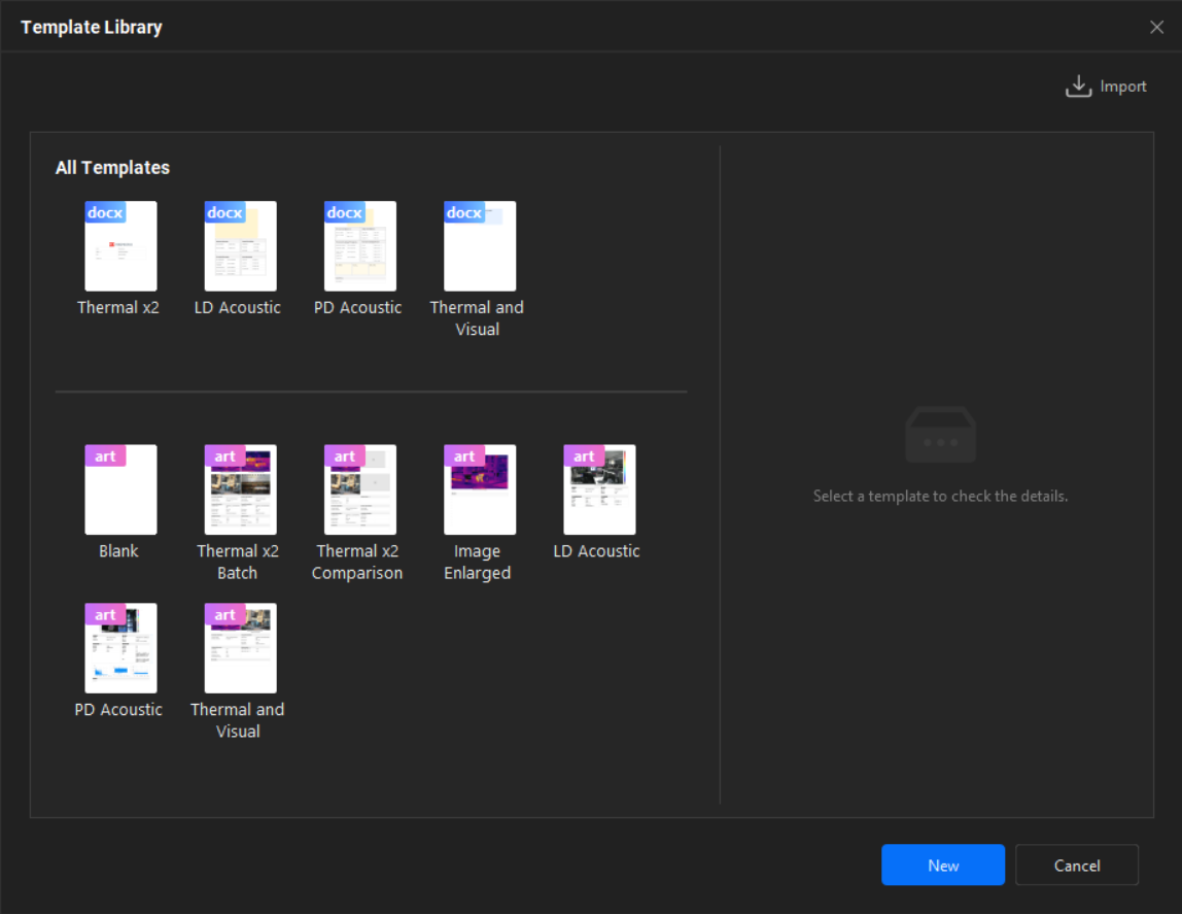
System templates includes two formats: ART templates and DOCX/DOTX templates.
- ART Template
-
When using this type of template to generate a report, it supports previewing and editing the content directly within the client software. When exporting, selecting the ODT format allows further opening and modification using software such as Microsoft Word that supports this format.
- DOCX/DOTX Templates
-
Reports generated using this type of template do not support in-client editing. After adding images to be analyzed in the client, the report is directly exported as a DOCX format document. It can be opened and modified using software such as Microsoft Word that supports this format.
This type of template can be created using ReportMate tool. For instructions on how to use the tool, refer to Use Report Template Tool to Create DOCX/DOTX Template.
There are multiple system ART page templates for thermal and acoustic analysis. You can see them in template selecting page: Thermal x2 Batch, Thermal x2 Comparison, Image Enlarged, and Thermal and Visual, LD Acoustic, and PD Acoustic.
-
The first two page templates (Thermal x2 Batch and Thermal x2 Comparison), containing 2 thermal images each, work better with 2-image groups.
-
Thermal and Visual has one thermal image. It works better with a single image.
-
Image Enlarged has no thermal image. A thermal image linking to this page template will be converted into a non-radiometric one.
-
LD Acoustic is suitable for gas leak acoustic image analysis. It has one acoustic image and corresponding information such as image details, camera specifications, leak details, and estimated leak lost.
-
PD Acoustic is suitable for partial discharge acoustic image analysis. It has one acoustic image and corresponding information such as image details, camera specifications, and PD type possibilities.
Importing Templates
The software allows importing templates. See Import Template for instructions.
The non system templates in the Template Library are allowed to export and sent to other users. See Export Template for instructions.
Saving Page Template and Report Template (ART Format)
After finishing editing a report (see Edit Report for instructions), you can export the whole file as a report template, or select to save typical pages as page templates.
-
To save a report template: select from the toolbar, enter a template name, and save the file.
- To save a page template: right click on a page thumbnail from the page preview, select Save as Template, and enter a template name to save the file.
 from the toolbar, enter a template name, and save
the file.
-
Names of new templates are not allowed to duplicate the system ones. If you set a name that is the same as an existing non-system one, it will overwrite the former one.
-
When saving a report template, it only contains 1) pages without thermal/acoustic images (for example, cover page, overview page), and 2) pages with different number of thermal/acoustic images, one page for each number. If there are several pages contains the same amount of thermal/acoustic images in the report, the first page will be saved in the report template.
Use Report Template Tool to Create DOCX/DOTX Templates
During the installation or upgrade of the client software, ReportMate is installed with the client software by default. ReportMate helps create DOCX/DOTX templates (see Software Installation and Software Upgrade). This tool enables quick editing of report templates in Microsoft Word. For instructions on how to use the tool, see Use Report Template Tool to Create DOCX/DOTX Template.
Managing Templates
Go to Template Library from the report home page to rename and delete non system templates via the right-click menu.
