Navigation for Analysis Tab (LD Acoustic Image)
-
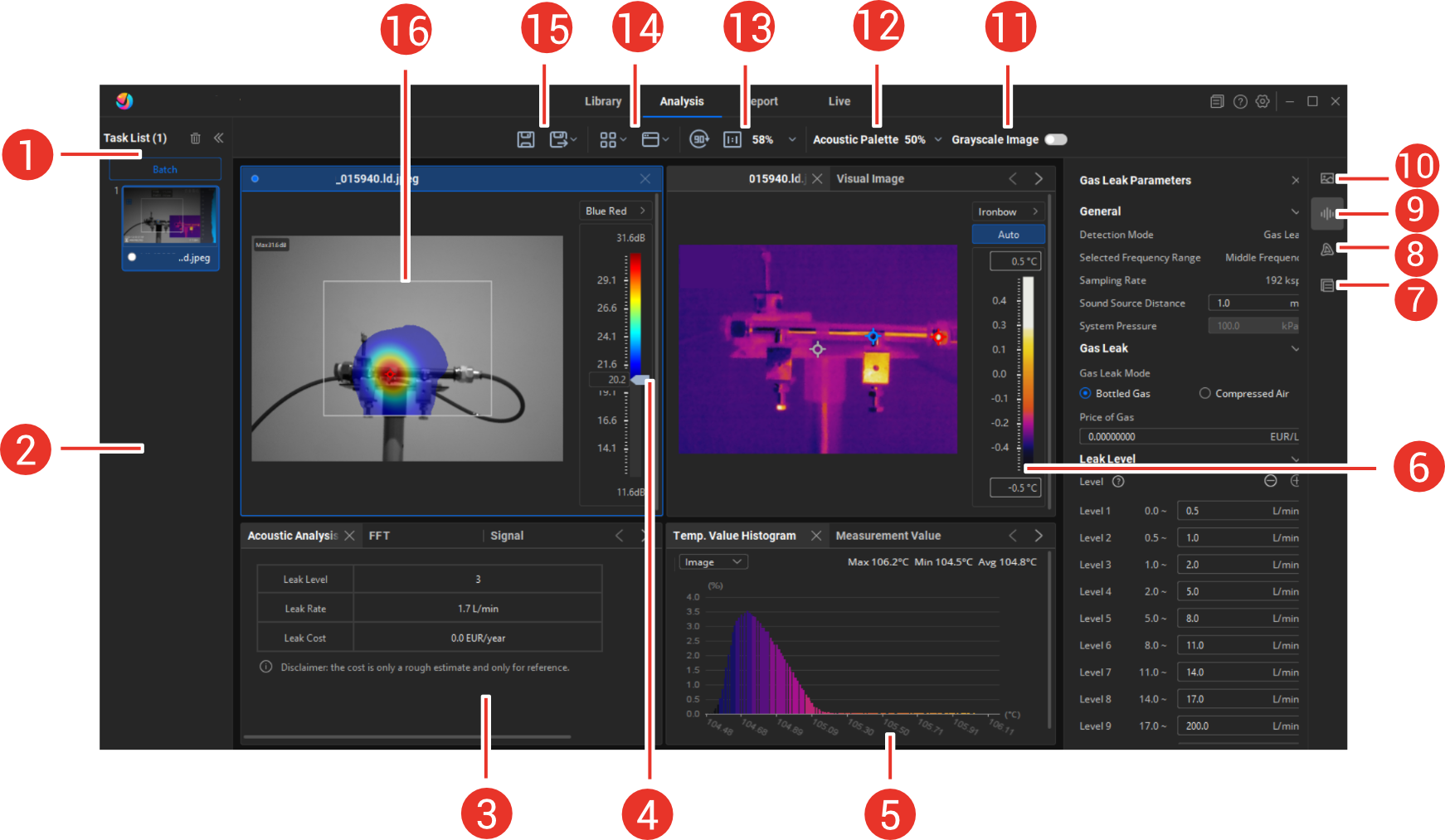
Operation buttons of the task list. The operations work on all files in the task list, for example, auto grouping, batch operation, and clear the list.
-
Task list. Acoustic images, image groups can be added to the list for analysis or report generating. See Add Video/Image to Task List for instructions. The main window area displays the images and information of the selected file in the list.
-
Acoustic analysis result window, displays the acoustic analysis result of the image. To open the window, see Window Layout Adjustment for details.
-
Intensity Scale setting tool. See Set Acoustic Palette Color and Adjust Sound Intensity of Acoustic Palette for details.
-
Temperature value window. Acoustic-thermal image supports displaying temperature measurement results and temperature histograms. To open this window, see Window Layout Adjustment for instructions.
-
Visual image and thermal image window. The acoustic image contains a visual image. If it is an acoustic-thermal Image, it contains a thermal image. You can add a visual image window or a radiometric image window. To open the window, see Window Layout Adjustment for details.
-
Annotation panel. View and change the notes attached to the radiometric images. See View and Modify Image Annotations for details.
-
Temperature analysis panel. Displays the measurement parameters, such as, atmospheric temperature and humidity, target emissivity, reflected temperature, distance, on this panel.
-
Acoustic analysis panel. Displays and configures gas leak parameters. See Bottled Gas Leak and Cost Calculation and Compressed Air Leak and Cost Calculation for details.
-
File information panel. It displays the capture time, resolution, device and other information of the file.
-
Grayscale image setting. Sets the grayscale image on or off. See Set Grayscale of Visual Image for details.
-
Acoustic palette settings. To adjust acoustic palette opacity, see Adjust Acoustic Palette Opacity for details.
-
Image rotation and resizing tools. See Rotate and Resize Image for details.
-
Quick layouts and windows. You can apply quick layout options or arrange the window layouts freely. See Window Layout Adjustment for instructions.
-
Saving and exporting files and data.
-
ROI. When the device enables the ROI to capture an image, the analysis interface will display the ROI, but the current version does not support editing or moving it.
-
The content related to viewing and analyzing thermal images mentioned in points 5, 6, and 8 above is only supported by acoustic-thermal Images.
-
When both the acoustic image and thermal image windows are displayed, you can switch the analysis window through the following methods:
-
Switch to acoustic analysis window:
-
Click the acoustic image window.
-
Click the acoustic analysis panel.
-
-
Switch to thermal analysis window:
-
Click the thermal image window.
-
Click the temperature analysis panel.
-
Click measurement in the Measurement Value table (To open the Measurement Value table, click > Add Measured Temp..
-
The acoustic/thermal image window is highlighted in blue; the toolbar displays acoustic/thermal analysis tools; and the right analysis panel shows acoustic/thermal parameters.
-