Use Report Template Tool to Create DOCX/DOTX Template
ReportMate is an assistant tool for generating reports. It works with Microsoft Word to create complex-style report templates.
Install ReportMate
The tool is installed and upgraded automatically alongside the main client software. Thermal and acoustic analysis reports are supported.
Launch ReportMate
-
Select the ReportMate tool icon in the home page of Report.
-
Or launch ReportMate by its desktop shortcut.
Tool Interface and Functions
-
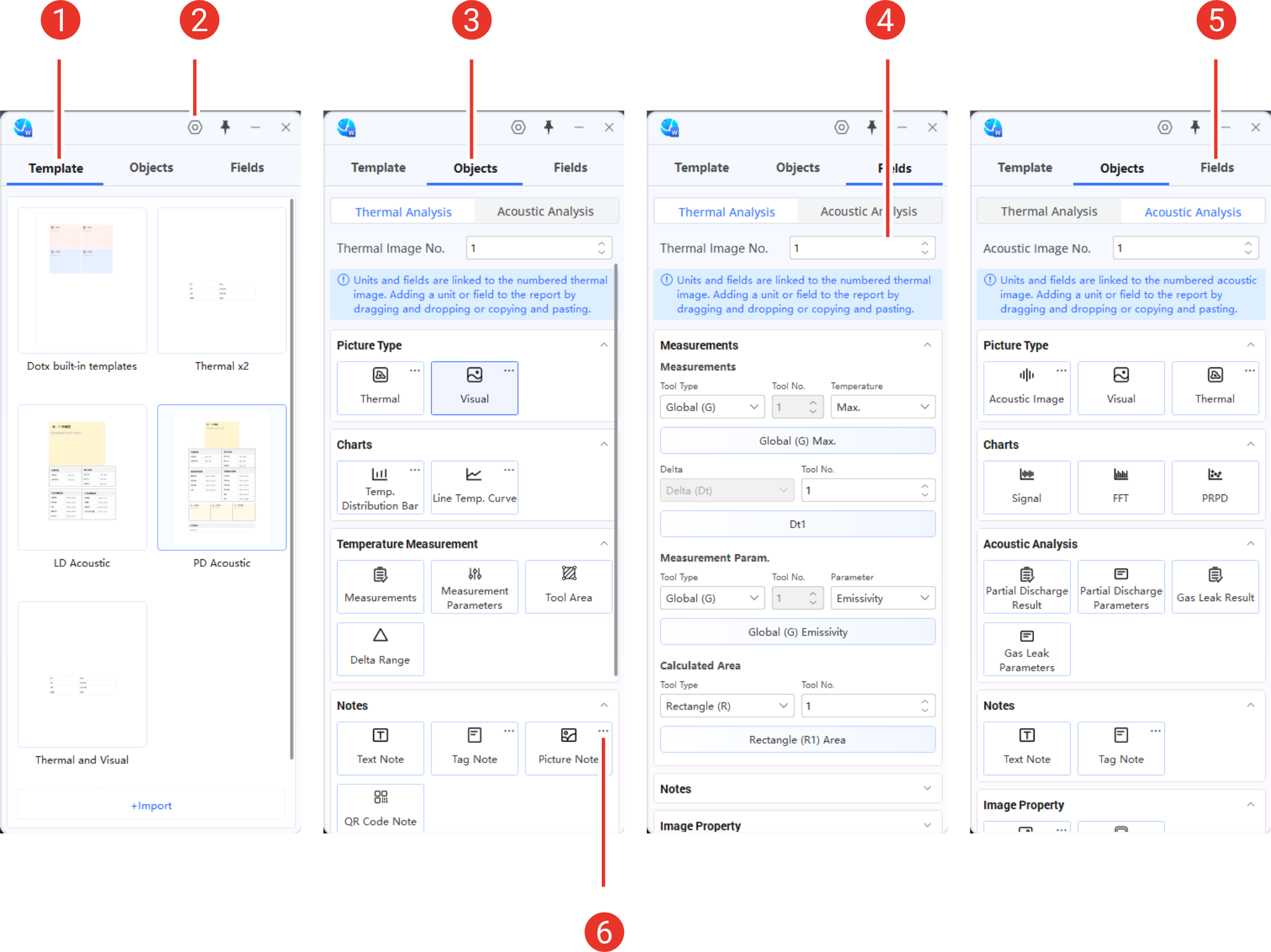
Template library.
-
The library shares the same source with the report template library in HIKMICRO Analyzer. Templates imported through this page will be synchronized after HIKMICRO Analyzer is restarted.
-
Double-clicking a template in this library opens it directly in Microsoft Word for editing.
-
You can also import new templates by clicking the + Import button below.
-
-
Settings. Changing language is supported.
-
Objects. Predefined images and information blocks. Images and charts are displayed as picture placeholders and other information blocks are shown as tables with predefined data fields. Objects for thermal and acoustic analysis are different.
-
Image number. Data, charts and images of the following objects and fields are all sourced from the selected image.
-
Fields. The data can also be added to Microsoft Word as fields. For certain field types, such as measured temperatures, it is necessary to first configure the tool type, tool number and the specific temperature to generate a field, and then copy and paste it in Microsoft Word.
-
Object settings. When a three-dot icon (···) appears at upper right corner of a unit, more settings should be done to refine the content, for example, display temperature scale or not for a thermal image.
Quick Using Guide
-
Launch Microsoft Word and ReportMate.
NoteIt is recommended to open ReportMate from the client software's report page to ensure synchronization with the latest reporting features in the client.
-
Copy or Drag desired objects and fields from ReportMate to Word page.
-
Select Thermal Analysis or Acoustic Analysis from Objects or Fields.
-
Select a Thermal Image No. or Acoustic Image No.. If only one thermal/acoustic image is required in one page, keep the value 1. If multiple images need to be arranged in one page, the Thermal Image No. or Acoustic Image No. should be set before adding objects and fields to establish the data-image relation.
-
-
Other format editing can be performed by referring to the Word operation guide.
-
Save the word file after finishing editing. The DOTX and DOCX format are all good.
-
Import the Word file into the report template library. The template can be imported from HIKMICRO Analyzer (see Import Template for instructions), or from the Template tab.