Create and Use Tag Note Template
When the report requires a large amount of extra information, you can add and configure the tag notes. This feature is currently supported by images only.
Tag Note Template Management
-
On the top right corner of the client, click Template Library > Tag Note Template at the top-right corner of the client, to open the Tag Note Template Settings window.
NoteThere will be a default template file named General.json.
-
On the top right corner of the window, click New to create a new template. Enter the template name and click Confirm.
The created template will be displayed in the template list.
-
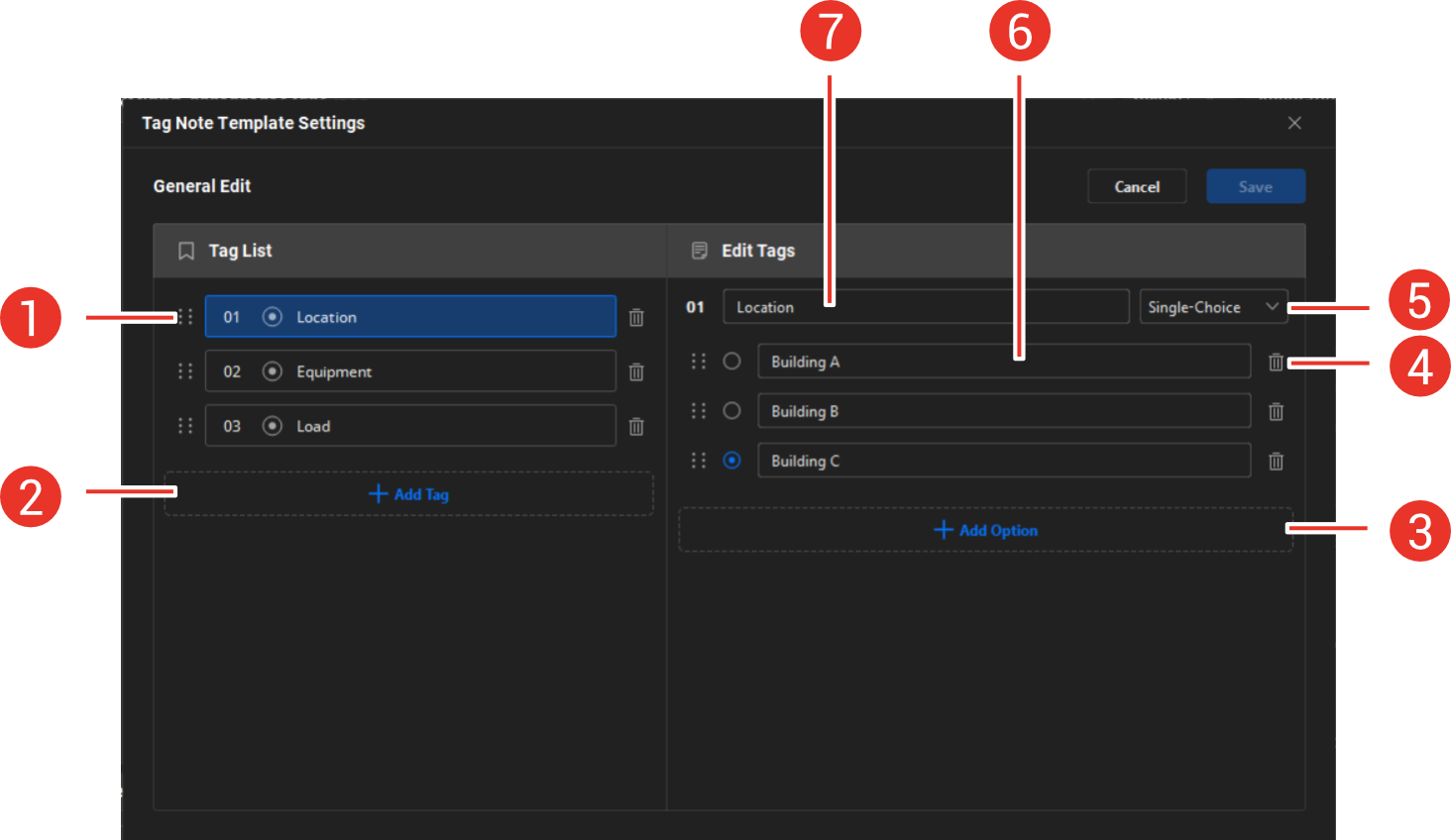
Select the created template and click Edit on the right.
Figure 1 Tag Note Template SettingsNo.
Function
1
Drag to adjust the order.
2
Add a new tag.
3
When the tag type is single-choice or multi-choice, click to add an option.
4
Delete.
5
Select the tag type: single-choice, multi-choice, or text.
6
Edit the option content.
7
Edit the tag name.
-
After the template is configured, click Save. The saved template can be used for image analysis.
NoteFor added and default templates, you can delete them or rename them.
 Template
Library
 Tag Note
Template
Import and Export Tag Note Templates
-
During analysis, users edit tag notes through the Tag Note in Annotations panel on the right of the analysis window. If the tag notes need to be used for the analysis of other images, export the notes as a template by and import it to the tag note template library by Template Library > Tag Note Template in the upper right corner of the client software window.
-
Other tag note templates are also allowed to import to the client software by Template Library > Tag Note Template in the upper right corner of the client software window.
-
When importing a DOCX or DOTX report templates to the client software, if tag notes are included, the client software extracts the tag notes and generate a tag note template saving in the tag note template library. In this tag note template, all tag categories are texts, arranged in the order from top to bottom and left to right as they appear in the DOCX or DOTX report template. If a tag note template with the same name already exists in the template library, the user can choose whether to overwrite this tag note template or not. More information about DOCX or DOTX report template, see Report Template.
 and import it to the tag note template library by
Local Management of Tag Note Template
The default template and newly-added template will be saved to the path (Public\HIKMICRO Analyzer\TextRemarkTemplate). You can also add and configure templates via any text editor on the local PC.
Template files which are in JSON format and comply with relevant protocols will be automatically read by the client, and the template list will be refreshed after you re-open the Tag Note Template Settings window, or add/delete/import any template(s).
Image Tag Note Configuration
On the Analysis page, you can select an added template for the current image, or directly configure a tag note for the image specifically. With the specifically configured tag note for the image, if you want to replace it with another existing template, the configured tag note information will be overwritten and lost. See details in Set Tag Note for One Image.
On the right side of the Analysis page, click . For how to configure tag note, refer to Tag Note Template Management.
 . For how to configure tag note, refer to