Navigation for Analysis Tab (Thermal Image)
-
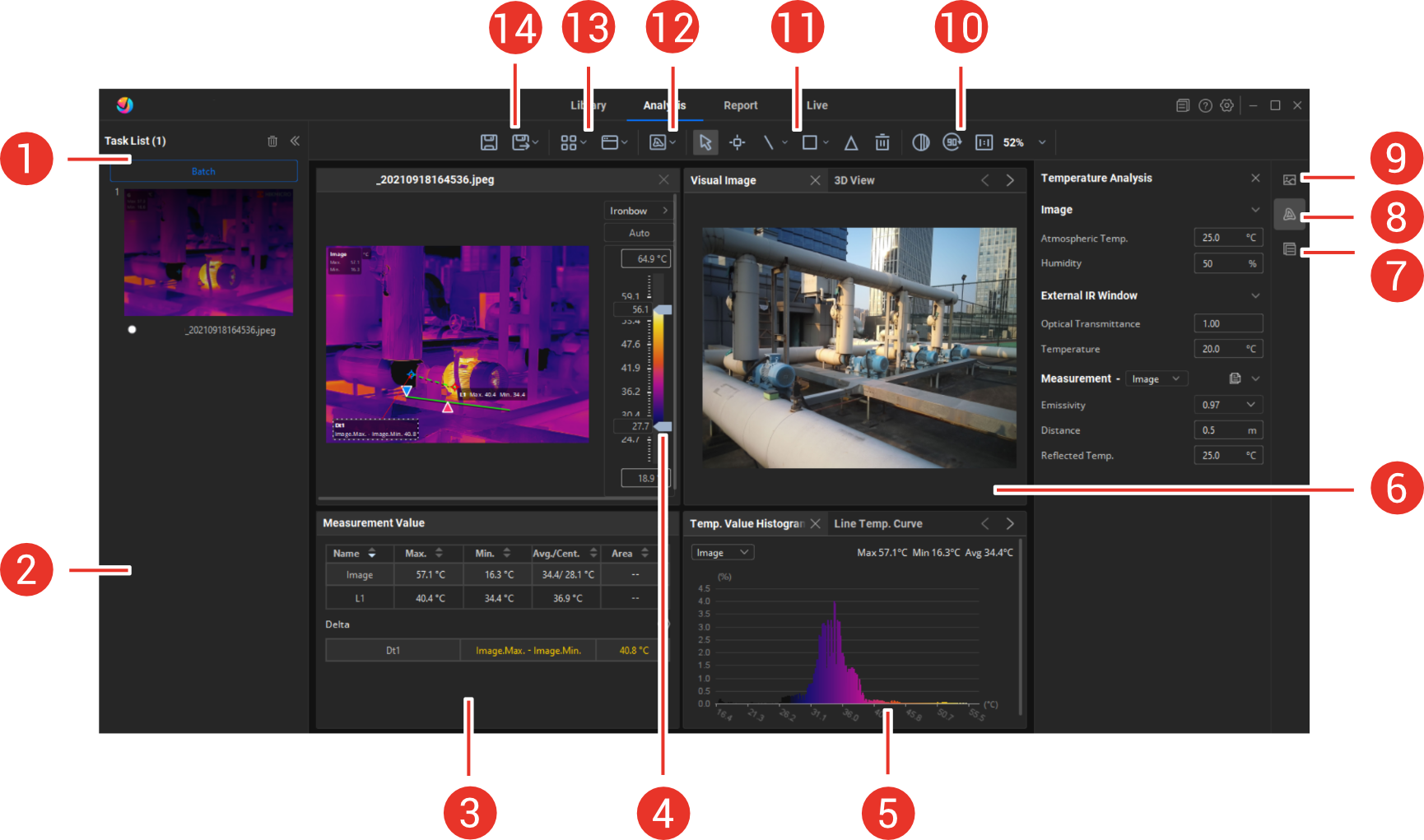
Operation buttons of the task list. The operations work on all files in the task list, for example, auto grouping, batch operation, and clear the list.
-
Task list. Radiometric images, videos, image groups, trend videos, etc., can be added to the list for analysis or report generating. See Add Video/Image to Task List for instructions. The main window area displays the images and information of the selected file in the list.
-
Temperature value window. It displays the measured temperatures in the image and measurement tools. To open the window, see Window Layout Adjustment for details.
-
Palette setting tools. There are mainly 4 palette types, the common palettes and their reversed versions, isotherm, condensation, and insulation. See Palettes and Reversed Palettes, Set Isotherm, Insulation, Condensation Detection, Level and Span, and Color Distribution for details.
-
Temperature chart window. Temperature distribution and line chart are available for the entire image or the configured measurement tools. To open the window, see Window Layout Adjustment for details.
-
Visual image and 3D view window. If the radiometric image has a visual image attached, you can add a visual image window. To open the window, see Window Layout Adjustment for details. For the details of 3D view window, see View and Export 3D Thermal View.
-
Annotation panel. View and change the notes attached to the radiometric images. See View and Modify Image Annotations for details.
-
Temperature analysis panel. Change measurement parameters, such as, atmospheric temperature and humidity, target emissivity, reflected temperature, distance, on this panel. See Modify Temperature Measurement Parameters for details.
-
File information panel. It displays the capture time, resolution, device and other information of the file.
-
Advanced editing, image rotation and resizing tools. See Advanced Image Editing, and Rotate and Resize Image for details.
-
Measurement analysis tools. Use these tools to add and edit different types of measurements, clear all measurements, etc. See Add Measurement Tool for details.
-
Display mode. If the radiometric image has a visual image attached, thermal, fusion, PIP, blending, visual are switchable. See Set Display Mode for details.
-
Quick layouts and windows. You can apply quick layout options or arrange the window layouts freely. See Window Layout Adjustment for instructions.
-
Saving and exporting files and data.
If the thermal image is captured when the device is in burning-prevention mode (device shutter is closed to prevent the detector from damage caused by unexpected high temperature targets), there will be a prompt reminding users of this situation.